AGENTIC ENGINEERING
Conductor CLI Guide: Register, Run, Retry, and Recover Durable Workflows Without Leaving Your Terminal 💻

Maria Shimkovska
Content Engineer
Last updated: March 24, 2026
March 24, 2026
5 min read


Join thousands of developers building the future with Orkes.
A practical guide to using the Conductor CLI to build, run, and recover workflows from the terminal.
What this covers
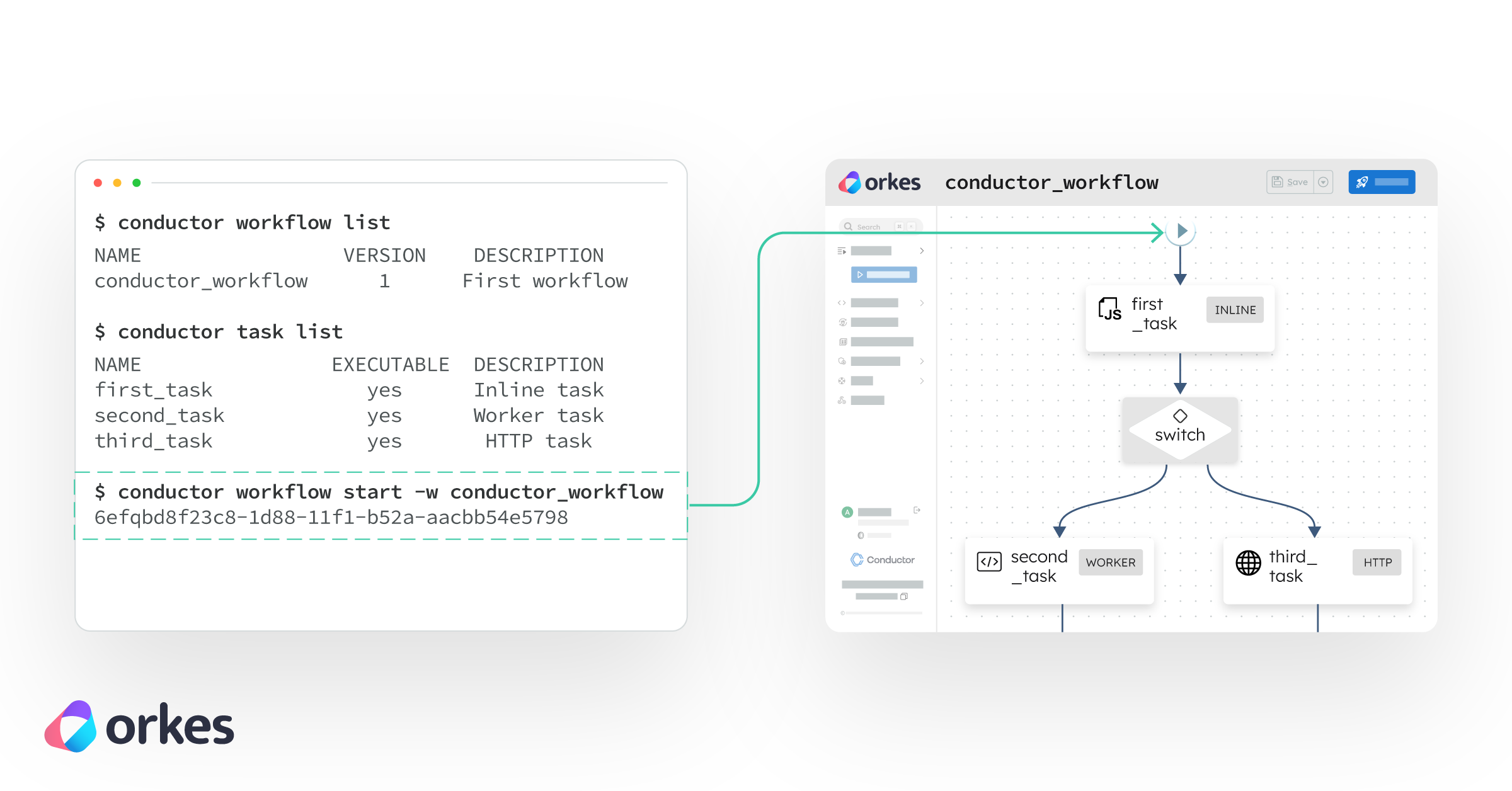
How to install and use the Conductor CLI to register workflows, trigger runs, recover from failures, and manage multiple environments — all from your terminal.
Key takeaways
What you'll build
A three-step password reset workflow running on local Conductor OSS — cloned from a working example and managed entirely from the terminal, including intentionally breaking it and recovering it with the CLI.
Prerequisites
This is for anyone who wants to build, run, and maintain their workflows from the terminal alone. I put together a working password reset workflow using Conductor OSS. Clone it, get it running, and let's walk through what the Conductor CLI can actually do — like registering workflows, triggering runs, watching executions, recovering from failures, managing environments, and more.
One thing worth knowing before you start: when you install the CLI, it comes bundled with a local Conductor OSS server you can spin up with conductor server start. That's what we'll use here. But the CLI is also just a client — you can point it at any external Conductor server by setting a server URL, which is exactly what the profiles section at the end covers.
The workers are written in TypeScript. All the CLI commands work the same regardless of what language your workers are in. Which is pretty useful. 💁♀️
But beyond all that, here is the foundational thing Conductor was built for: durability. Every execution is persisted, every step's inputs and outputs are recorded, and every failure is recoverable. The CLI is just the surface — what's underneath is a workflow engine that doesn't lose state, not when a worker crashes, not when your email provider goes down, not when you push a new version mid-flight. Let's make that concrete.
The Conductor CLI is a command-line tool for interacting with Conductor workflows. It allows you to:
Instead of relying on a UI, you can manage the full lifecycle of your workflows directly from the terminal.
The Conductor CLI is commonly used for workflow orchestration, automation pipelines, and managing long-running distributed processes.
Conductor is designed for durable workflow execution, which means:
This allows workflows to survive:
I outlined the steps below so you can get the project I set up running locally so all you have to do is run the Conductor CLI commands to learn what it can do.
Prerequisite: Java 21+ (required for the Conductor server) and Node.js.
Follow these steps to install the Conductor CLI and run a workflow locally:
# 1. Install the CLI and start the server
npm install -g @conductor-oss/conductor-cli
conductor server start

# 2. Clone and install dependencies
git clone https://github.com/maria-shimkovska/conductor-password-reset.git
cd conductor-password-reset
npm install

# 3. Register the task and workflow definitions
conductor task create definitions/task-definitions.json
conductor workflow create definitions/password_reset.json

# Point your workers at the local server
export CONDUCTOR_SERVER_URL=http://localhost:8080/api

# 4. Start the workers
npm start
Then open http://localhost:8080. That's the Conductor UI — your dashboard for watching workflows execute, inspecting every step's inputs and outputs, and seeing exactly what went wrong when something fails. It's empty right now. That's about to change, but first...
The project is a three-step password reset workflow: invalidate any existing tokens, generate a new one, then send the email. It's a good example because step 3 can fail and retry — and when it does, Conductor automatically reuses the token from step 2 rather than generating a new one. That's durability in action: completed step outputs are persisted, so retries always work from the same recorded state, not a re-run.
reset-workers.ts: three async functions, one function per step/task (an individual step in a workflow) in the workflow.definitions/password_reset.json and retry/timeout configs for each task are in definitions/task-definitions.json.From a second terminal, start a workflow execution, essentially just start the workflow :
conductor workflow start \
  --workflow password_reset \
  --input '{"email": "you@example.com"}'
The CLI returns a workflow ID (a unique identifier for each run) immediately. That ID is a durable handle and it will be valid whether the workflow finishes in 2 seconds or picks back up after an outage 2 days later.
Switch to the UI at http://localhost:8080 and click into the execution. You'll see the three steps laid out as a graph, each turning green as it completes. Click any step to see its exact inputs, outputs, and timing. The token value, the reset URL, the expiry timestamp, all recorded durably, all visible, no log files needed. If something goes wrong, you're not hunting through logs hoping a relevant line was written. The execution record is the log.
Wait for it synchronously if you're scripting or using this in a CI pipeline:
conductor workflow start \
  --workflow password_reset \
  --input '{"email": "you@example.com"}' \
  --sync
Tag it with a correlation ID so you can find the execution later without storing the workflow ID yourself:
conductor workflow start \
  --workflow password_reset \
  --input '{"email": "you@example.com"}' \
  --correlation reset-maria-1234

# Find it later
conductor workflow search --workflow password_reset --correlation reset-maria-1234
conductor workflow search --workflow password_reset --correlation reset-maria-1234 --status COMPLETED
conductor workflow search --workflow password_reset --correlation reset-maria-1234 --status FAILED
This is the part that makes Conductor click and where durability stops being an abstract concept.
Open reset-workers.ts and update the email worker to throw an error, simulating an email provider outage:
@worker({ taskDefName: 'send_reset_email', concurrency: 5 })
async function sendResetEmail(task: Task) {
  throw new Error('Email provider returned 503 — service unavailable');
}
Restart the workers (npm start) and trigger another run. Watch the UI. Steps one and two complete fine. Then the email step turns red. Conductor retries it. It throws again. After hitting the retry limit configured in definitions/task-definitions.json, the workflow stops in a FAILED state.
The token was generated once. Every retry of the email step received the same token. That's not something you had to code. That's just how Conductor works when steps are properly separated.
Fix the worker (remove the thrown error), restart it, then retry the failed execution from the CLI, you don't need to start a new one:
conductor workflow retry <workflow-id>
Conductor picks up from the email step with the same inputs — same token, same email — and continues. The first two steps don't re-run. This is state persistence in practice.
Other recovery options depending on the situation:
# Restart the whole workflow from the beginning
conductor workflow restart <workflow-id>

# Skip the failed step and continue
conductor workflow skip-task <workflow-id> email_ref \
  --task-output '{"sent": false, "skipped": true}'

# Pause while you investigate, resume when ready
conductor workflow pause <workflow-id>
conductor workflow resume <workflow-id>

# Get full execution details
conductor workflow get-execution <workflow-id> --complete
A quick distinction worth knowing is between the retry and restart commands. They seem similar at first, but behave differently. retry is for failed workflows, so when you use that command it picks up from the task that failed and continues from there, leaving completed steps untouched. restart is for starting over entirely, so the entire workflow, not just from the step that failed. It reruns the entire workflow from step one and you can pass --pass-latest to run it against the newest workflow definitions rather than the one the original execution used. So long story short:
The pause/resume pair is worth highlighting specifically. Because Conductor's state is durable, pausing a workflow costs nothing — there's no in-memory state to preserve, no risk of losing progress. You can pause a workflow, redeploy your workers entirely, and resume it days later. It'll continue exactly where it left off.
Once this is handling real traffic you'll want visibility into what's running and what's failed:
# Everything currently running
conductor workflow search --workflow password_reset --status RUNNING

# All failures since a specific date
conductor workflow search \
  --workflow password_reset \
  --status FAILED \
  --start-time-after "2025-01-01"

# Full JSON output for scripting
conductor workflow search --workflow password_reset --json 2>/dev/null
Bulk retry after an outage. Your email provider had a bad hour and thirty resets failed. Don't touch them one by one:
conductor workflow search \
  --workflow password_reset \
  --status FAILED \
  --json 2>/dev/null \
  | jq -r '.[].workflowId' \
  | xargs -I{} conductor workflow retry {}
Every one of them picks up from the failed email step with the original token. No user gets a new link. No duplicate tokens. The recovery is clean and the original token expiry still applies.
Check status in a script:
STATUS=$(conductor workflow status <workflow-id> 2>/dev/null)
# Returns: RUNNING, COMPLETED, FAILED, TERMINATED, TIMED_OUT, or PAUSED

if [ "$STATUS" = "COMPLETED" ]; then
  echo "Reset sent successfully"
else
  echo "Something went wrong: $STATUS"
fi
The 2>/dev/null strips update notifications from stderr, leaving stdout clean for piping. The CLI always separates operational output from data output so you can script against it safely.
Manually unstick a task if a worker is misbehaving and you need to unblock the workflow:
conductor task update-execution \
  --workflow-id <workflow-id> \
  --task-ref-name email_ref \
  --status COMPLETED \
  --output '{"sent": true, "manual": true}'
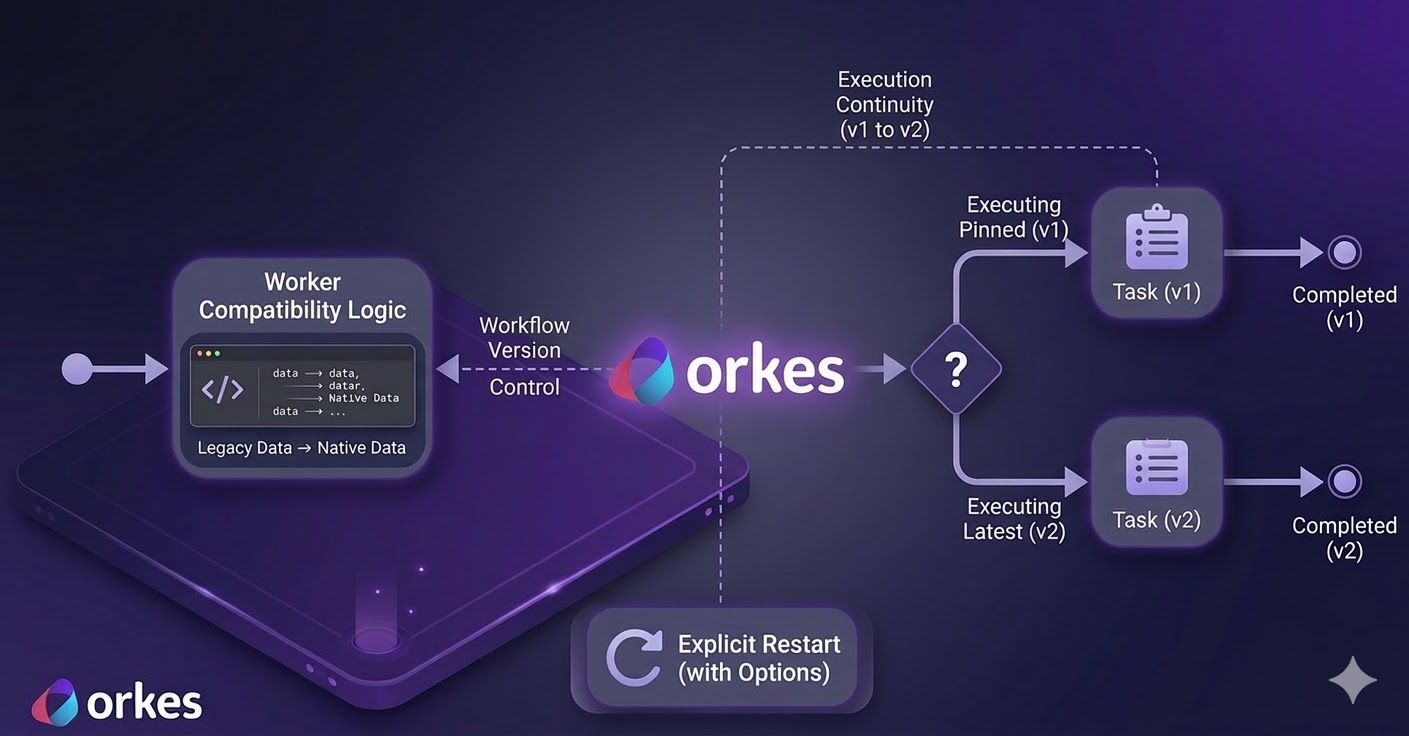
Need to add a step — a rate-limit check, a logging task, a restructured order? Register a new version. Existing executions keep running on their version, unaffected.
# Bump the version to 2 in definitions/password_reset.json, then:
conductor workflow update definitions/password_reset.json

# New executions use the latest version by default
conductor workflow start --workflow password_reset \
  --input '{"email": "you@example.com"}'

# Or pin to a specific version
conductor workflow start --workflow password_reset --version 1 \
  --input '{"email": "you@example.com"}'

# Inspect what versions exist
conductor workflow get password_reset
conductor workflow get password_reset 2
The CLI's profile system makes switching between local, staging, and production a single flag rather than a pile of environment variables to remember and rotate.
conductor config save --profile local
# Server URL: http://localhost:8080/api

conductor config save --profile staging
# Server URL: https://staging.myapp.com/api
# Auth key:    your-staging-key
# Auth secret: your-staging-secret

conductor config save --profile production
# Server URL: https://prod.myapp.com/api
# Auth key:    your-prod-key
# Auth secret: your-prod-secret
When a profile is active it's authoritative — a CONDUCTOR_SERVER_URL you exported earlier won't override it. This prevents the specific failure mode where a production command quietly hits a dev server.
Deploy the same workflow definition across environments with one flag swap:
conductor --profile staging workflow create definitions/password_reset.json
conductor --profile staging workflow start \
  --workflow password_reset \
  --input '{"email": "test@example.com"}' \
  --sync

# Promote to production once happy
conductor --profile production workflow create definitions/password_reset.json
OSS gives you the full workflow engine, but if you need built-in LLM tasks or a managed server you don't have to maintain, that's where Orkes Cloud comes in.
Everything above runs on a local OSS Conductor server. When you're ready to explore further, you can point the CLI at Orkes Cloud — the hosted version run by the team behind Conductor OSS. There's a free Developer Edition, no credit card needed and there's also no expiration date.
Beyond what's in OSS, it also adds built-in LLM task types for 14+ AI providers (OpenAI, Anthropic, Google Gemini, AWS Bedrock, and more) so you don't have to build and host your own custom services to build agentic workflows.
Sign up at orkes.io to get a cluster URL, auth key, and auth secret. Save them as a profile:
conductor config save --profile orkes-dev
# Server URL:  https://your-cluster.orkesconductor.io/api
# Auth key:    your-key
# Auth secret: your-secret
# Server type: Enterprise
Every command you've used in this article now works against the Orkes cluster with one flag:
conductor --profile orkes-dev workflow create definitions/password_reset.json
conductor --profile orkes-dev workflow start \
  --workflow password_reset \
  --input '{"email": "you@example.com"}'

# Switch back to local any time
conductor --profile local workflow list
Same definition files. Same commands. Only the profile changes. ☺️
The CLI is especially useful when:
If you just want a fast reference while working, here are the most useful Conductor CLI commands grouped by what you’re trying to do.
conductor server start            # Start local server
conductor server stop             # Stop local server
conductor server status           # Check server status

conductor config save             # Interactive config setup
conductor config save --profile prod
conductor config list             # List saved profiles
# Tasks
conductor task create task.json
conductor task list
conductor task get <task_type>
conductor task delete <task_type>

# Workflows
conductor workflow create workflow.json
conductor workflow create workflow.json --force
conductor workflow update workflow.json
conductor workflow list
conductor workflow get <name>
conductor workflow get <name> <version>
conductor workflow delete <name> <version>
conductor workflow start --workflow <name>
conductor workflow start --workflow <name> --sync
conductor workflow start --workflow <name> --version 2
conductor workflow start --workflow <name> --input '{"k":"v"}'
conductor workflow start --workflow <name> --file input.json
Capture workflow ID for scripting:
WF_ID=$(conductor workflow start --workflow <name> 2>/dev/null \
  | grep -oE '[a-f0-9-]{36}')
conductor workflow status $WF_ID
conductor workflow get-execution $WF_ID
conductor workflow get-execution $WF_ID --complete

conductor workflow search
conductor workflow search --workflow <name>
conductor workflow search --status FAILED
conductor workflow search --status RUNNING --count 100
conductor workflow search --start-time-after "2026-01-01"
Server logs:
conductor server logs
conductor server logs -f
conductor server logs -f -n 200
conductor workflow pause     $WF_ID
conductor workflow resume    $WF_ID
conductor workflow terminate $WF_ID

conductor workflow retry     $WF_ID
conductor workflow restart   $WF_ID
conductor workflow restart   $WF_ID --use-latest
conductor workflow rerun     $WF_ID
Modify execution flow:
conductor workflow skip-task $WF_ID <task_ref>
conductor workflow skip-task $WF_ID <task_ref> \
  --task-output '{"result":"skipped"}'

conductor workflow jump $WF_ID <task_ref>

conductor workflow update-state $WF_ID \
  --variables '{"key":"value"}'
conductor worker stdio --type <task_type> python3 worker.py
conductor worker stdio --type <task_type> node worker.js
conductor worker stdio --type <task_type> --count 5 python3 worker.py
conductor worker stdio --type <task_type> --verbose python3 worker.py
CONDUCTOR_PROFILE=dev  conductor workflow create workflow.json --force
CONDUCTOR_PROFILE=prod conductor workflow create workflow.json --force

conductor --profile prod workflow start --workflow <name>
--server <url>        # Conductor server URL
--auth-token <token>  # Auth token
--profile <name>      # Use profile
--verbose / -v        # Verbose output
--yes / -y            # Skip confirmations
--json                # JSON output
Use 2>/dev/null when scripting to suppress CLI update messages
The Conductor CLI sends update notifications to stderr, not stdout. When you're capturing output in scripts (for example, extracting a workflow ID), these messages can interfere with parsing. Redirecting stderr to /dev/null keeps your output clean and predictable.
Default search returns 10 results (max: 1000)
By default, conductor workflow search returns only the 10 most recent executions. Use --count to increase this (up to 1000) when you need to analyze larger batches of workflows, such as after an outage or for debugging patterns.
Config files live in ~/.conductor-cli/
The CLI stores configuration and profiles locally in this directory. Each profile (like local, staging, or production) is saved as a separate file, so you can safely manage multiple environments without overwriting settings.
Use conductor --help or conductor workflow --help for more details
The CLI has built-in help commands that list all available options and flags. Use them whenever you're unsure about syntax or want to discover additional capabilities without leaving the terminal.